Node.js Is Installed but Not Working on Windows? Try This Simple Fix (2026)
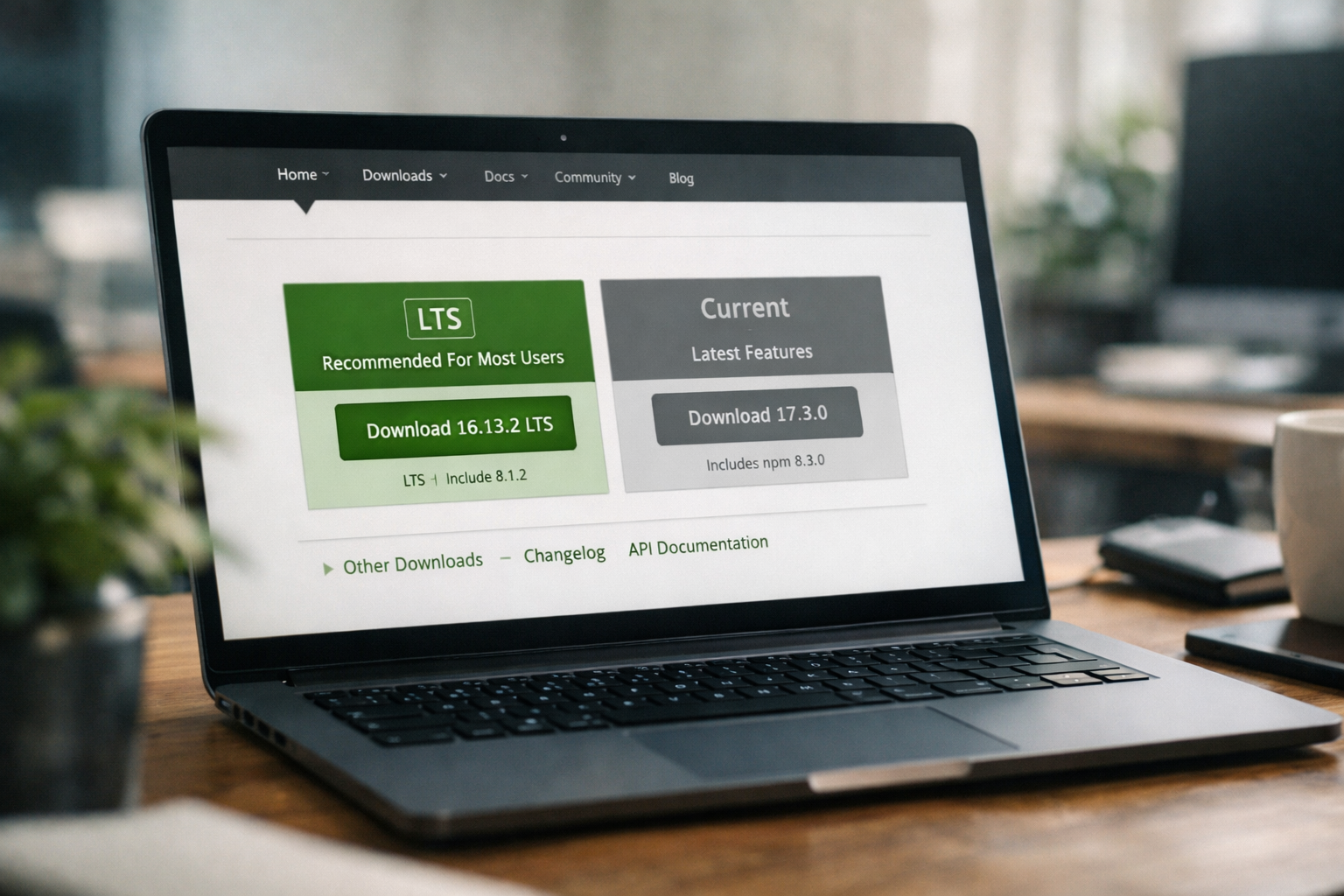
I remember this moment very clearly.
I had just installed Node.js on my Windows laptop, feeling excited to start backend development. Everything looked perfect during installation. No errors. No warnings.
Then I opened Command Prompt and typed:
Pressed Enter…
And boom—error.
'node' is not recognized as an internal or external command
If you’re reading this article, chances are you’re facing the same issue right now.
Don’t worry.
This problem is extremely common, especially for beginners, and the solution is much simpler than it looks.
In this detailed guide, I’ll explain why Node.js doesn’t work after installation on Windows, what causes this issue, and how to fix it step by step, even if you have zero technical background.
Why Node.js Is Not Working After Installation
Let’s clear one thing first.
👉 Node.js is not broken.
👉 Your computer is not broken.
The issue is almost always related to Windows PATH settings.
When you install Node.js, Windows needs to know where Node.js is located so it can run it from the Command Prompt or Terminal. If Windows can’t find it, you’ll see errors.
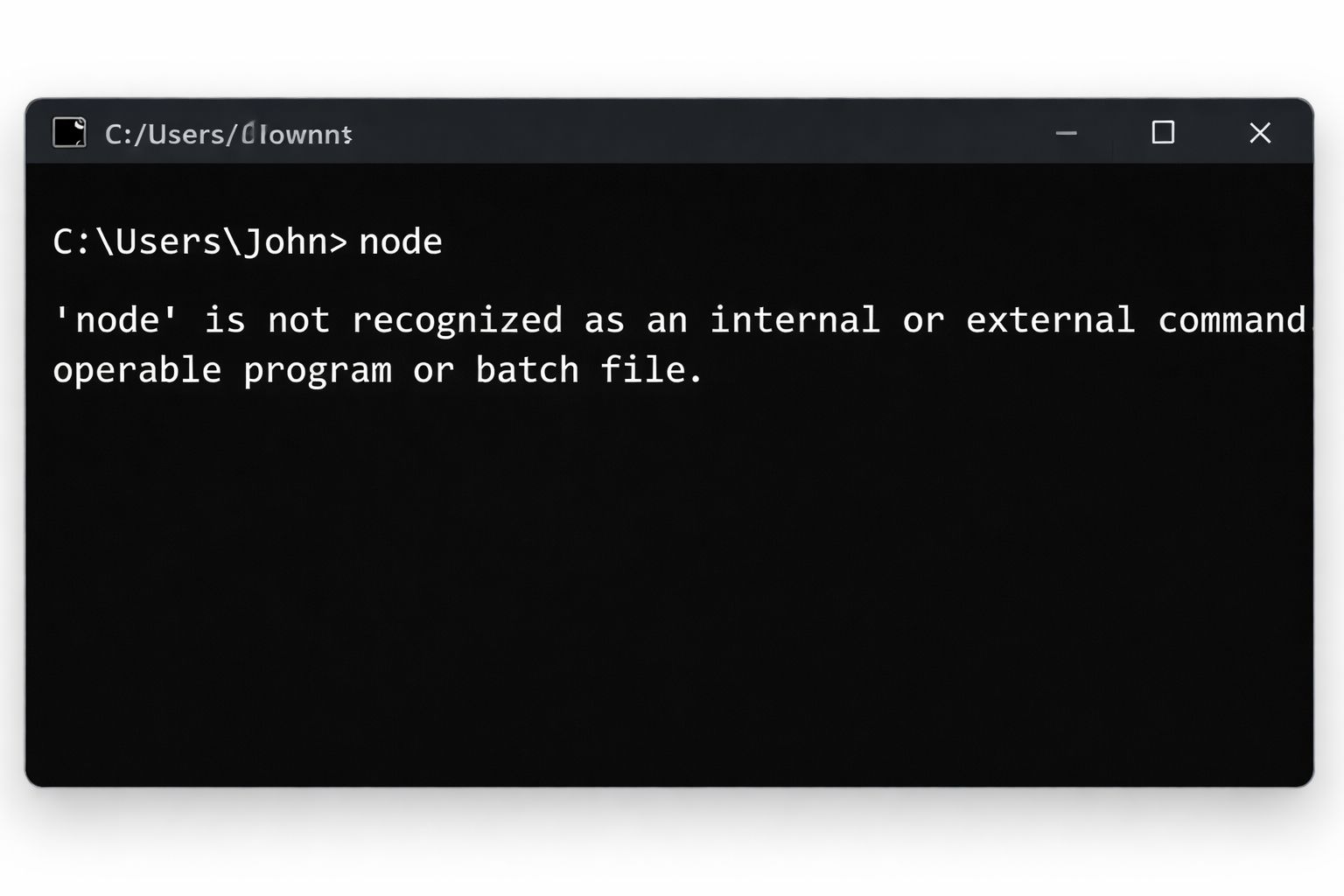
This happens because:
-
PATH doesn’t update properly
-
Installation didn’t finish correctly
-
Windows wasn’t restarted
-
Multiple Node.js versions are installed
Common Errors Users See
Here are the most common error messages:
-
'node' is not recognized as an internal or external command -
'npm' is not recognized -
Node.js is installed, but nothing happens
-
node -vshows nothing -
Works in one terminal but not another
If you see any of these, you’re in the right place.
Step 1: Check If Node.js Is Actually Installed
Before fixing anything, let’s confirm Node.js exists on your system.
How to Check:
-
Press Windows + R
-
Type
appwiz.cpl -
Press Enter
-
Look for Node.js in the program list
What This Means:
-
✔ Node.js is listed → installation exists
-
❌ Not listed → you need to reinstall Node.js
If Node.js is missing, download it again from the official website, choose the LTS version, and install it.
Step 2: Restart Your Computer (Very Important)
Many beginners skip this step.
Windows sometimes:
-
Doesn’t refresh PATH immediately
-
Keeps old environment variables active
A simple restart fixes the problem in many cases.
After restarting:
-
Open Command Prompt
-
Type
node -v -
Check if it works
If not, continue.
Step 3: Understand the PATH Problem (Simple Explanation)
Think of PATH like a map.
When you type node In Command Prompt, Windows searches specific folders listed in PATH.
If the Node.js folder is not in PATH, Windows has no idea where it node.exe is located—even though it exists.
That’s why this fix works.
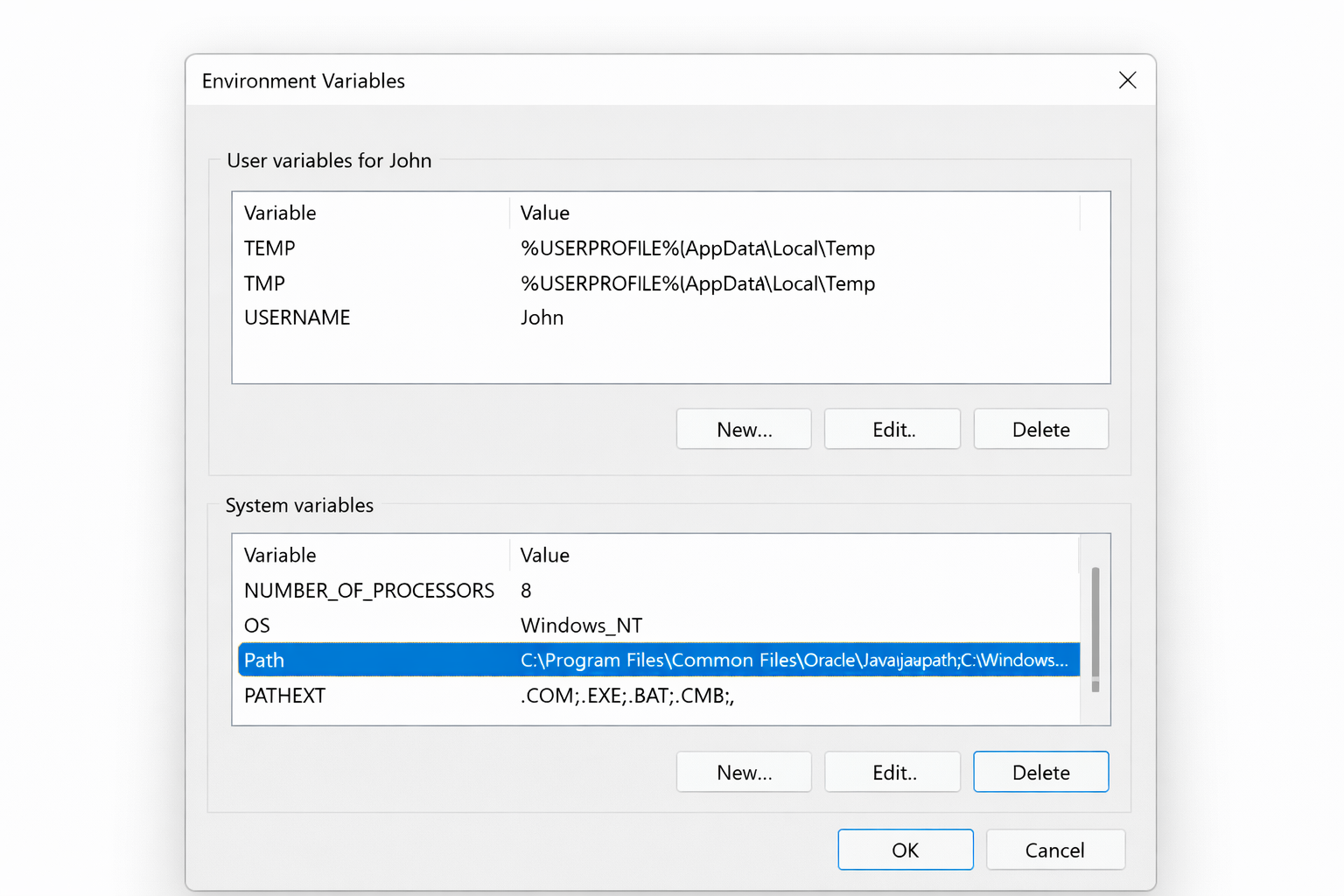
Follow these steps carefully. Don’t skip anything.
1️⃣ Open Environment Variables
-
Press the Windows key
-
Search “Environment Variables.”
-
Click Edit the system environment variables
-
Click Environment Variables
2️⃣ Edit System PATH
-
Under System Variables, find Path
-
Select it and click Edit
-
Click New
3️⃣ Add These Two Paths
Paste these (adjust username):
Replace YOUR_USERNAME with your Windows username.
4️⃣ Save Everything
-
Click OK
-
Close all windows
-
Restart your computer
This step fixes Node.js for most users.
Step 5: Verify Node.js Is Working
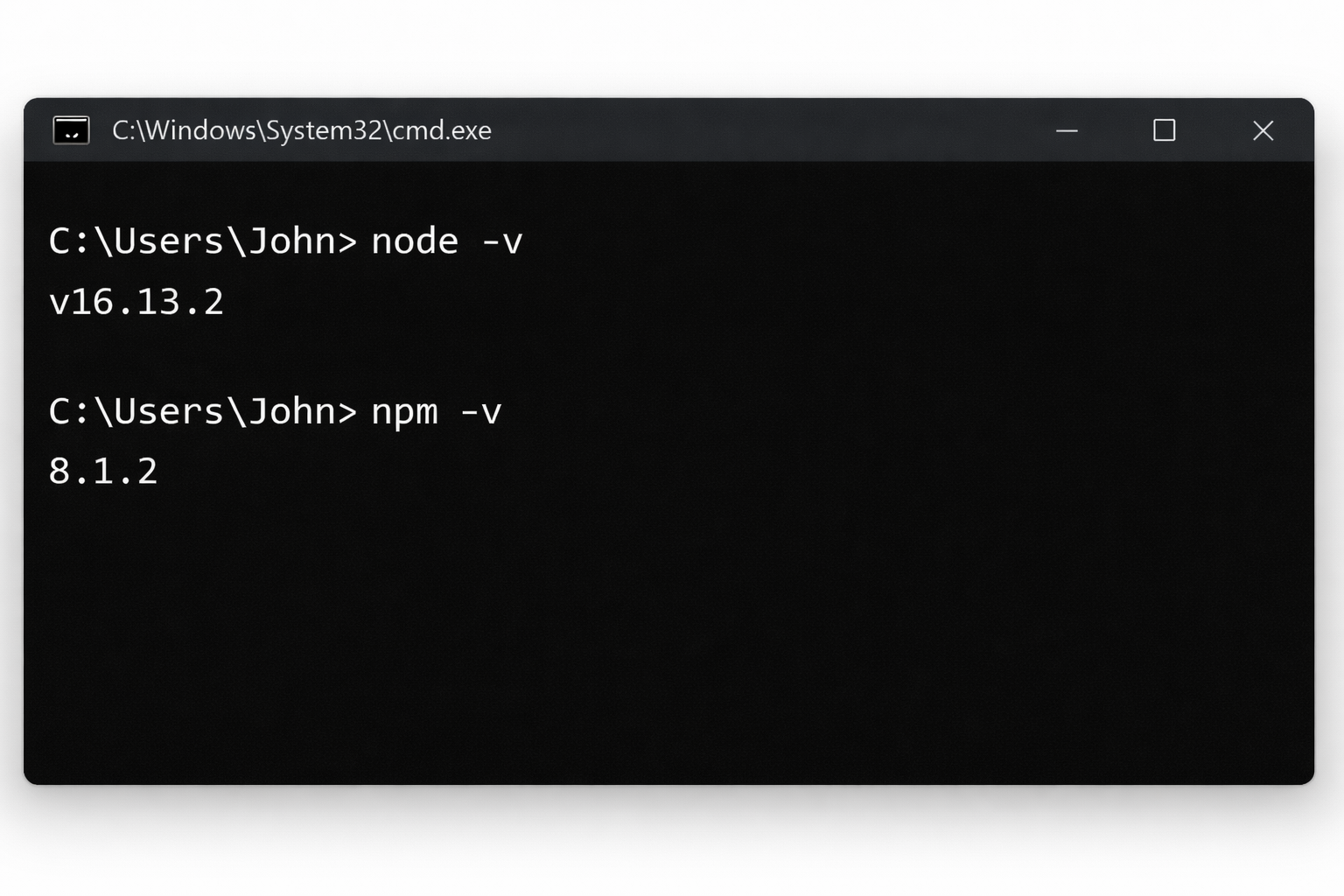
After restart:
-
Open Command Prompt
-
Type:
-
Then:
Expected Result:
-
You see version numbers
-
No error messages
Congratulations—Node.js is now working.
What If Node.js Still Doesn’t Work?
No stress. Let’s go deeper.
Step 6: Clean Reinstall Node.js (Advanced but Safe)
Sometimes old files or broken installs cause conflicts.
Step A: Uninstall Node.js
-
Go to Control Panel
-
Uninstall Node.js
Step B: Delete Leftover Files
Manually delete these folders if they exist:
Step C: Restart Windows
Step: D: Reinstall Node.js
-
Download the LTS version
-
Use default settings
-
Allow PATH during installation
-
Restart again
Then test node -v.
Command Prompt vs PowerShell vs VS Code Terminal
Beginners often ask:
“Which terminal should I use?”
Recommendation:
-
✔ Start with Command Prompt
-
✔ Once working, use:
-
PowerShell
-
Windows Terminal
-
VS Code Terminal
-
If Node.js works in the Command Prompt, it will work everywhere.
Why This Issue Is So Common in 2026
This isn’t your fault.
Reasons:
-
Windows security updates reset PATH
-
Users install many dev tools together
-
Cloud-synced user folders create conflicts
-
Beginners skip the restart step
Even experienced developers face this issue.
Is Node.js Safe After Fixing PATH?
Yes, completely safe.
Once PATH is correct:
-
Node.js runs normally
-
NPM installs packages correctly
-
You can build real projects
-
No security risk involved
What You Can Do After Fixing Node.js
Now that Node.js works, you can:
-
Learn backend development
-
Build APIs
-
Use Express.js
-
Create real-time apps
-
Start freelancing projects
This small fix is your first developer milestone.
Common Beginner Mistakes to Avoid
❌ Installing Node.js multiple times
❌ Using unofficial websites
❌ Not restarting Windows
❌ Editing PATH incorrectly
❌ Panic uninstalling everything
Take it step by step.
Final Thoughts
If Node.js is installed but not working on Windows, don’t panic.
In most cases:
-
The problem is PATH
-
The fix takes 10 minutes
-
No advanced skills required
Once fixed, Node.js becomes a powerful and reliable tool for your development journey.
If this guide helped you, you’re already moving forward
Pingback: 2026 में सबसे ज़्यादा पैसा देने वाली Programming Languages – Salary, Demand & Career Guide