Task Manager Has Been Disabled by Your Administrator—Fix Using CMD (Windows 10/11)

If you see the error message “Task Manager has been disabled by your administrator” while pressing Ctrl + Shift + Esc, Don’t worry.
This problem is common in Windows 10 and Windows 11 and can be fixed easily using Command Prompt (CMD).
This error usually appears due to:
-
Virus or malware infection
-
Incorrect system policy settings
-
Registry changes made by third-party software
In this guide, I will show you the working CMD method to re-enable Task Manager.
Why Is Task Manager Disabled?
Task Manager can be disabled when:
-
A malware modifies the Windows registry
-
Group Policy settings are changed
-
A system administrator restricts access
-
Some optimization or antivirus tools block it
The good news is, you can fix it without reinstalling Windows.
Fix Task Manager Disabled Error Using CMD (Recommended Method)
Follow the steps carefully.
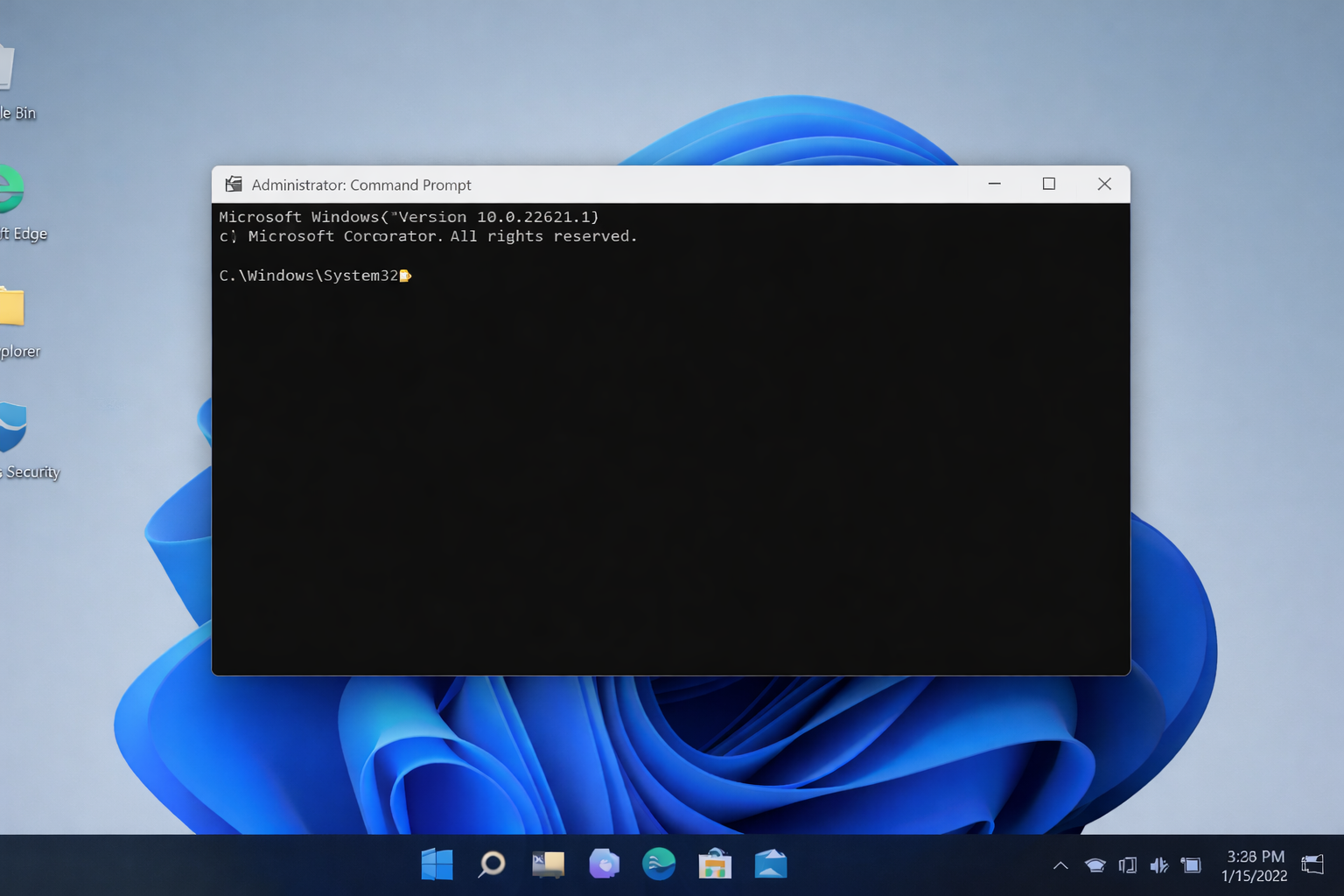
Step 1: Open Command Prompt as Administrator
-
Press Windows + S
-
Type cmd
-
Right-click on Command Prompt
-
Select “Run as administrator.”
Step 2: Run This Command
Copy and paste the command below into CMD and press Enter:
You should see a message saying:
The operation completed successfully
Step 3: Restart Your Computer
-
Restart your system
-
Press Ctrl + Shift + Esc
-
Task Manager should now open normally
If the CMD Method Does Not Work (Alternative Fix)
Try these basic checks:
-
Run a full antivirus scan
-
Check if your PC is connected to a work or school account
-
Restart Windows Explorer and try again
In most cases, the CMD method fixes the issue instantly.
Does This Method Work on Windows 11?
✅ Yes.
This CMD fix works on:
-
Windows 11
-
Windows 10
-
Windows 8/8.1
Final Words
The “Task Manager has been disabled by your administrator” error is not serious and can be fixed in less than 2 minutes using CMD.
If the problem returns, make sure your system is malware-free.
Pingback: Node.js Is Installed but Not Working on Windows? Try This Simple Fix (2026)