Mantra L1 110 Driver Download – Installation & RD Service Guide
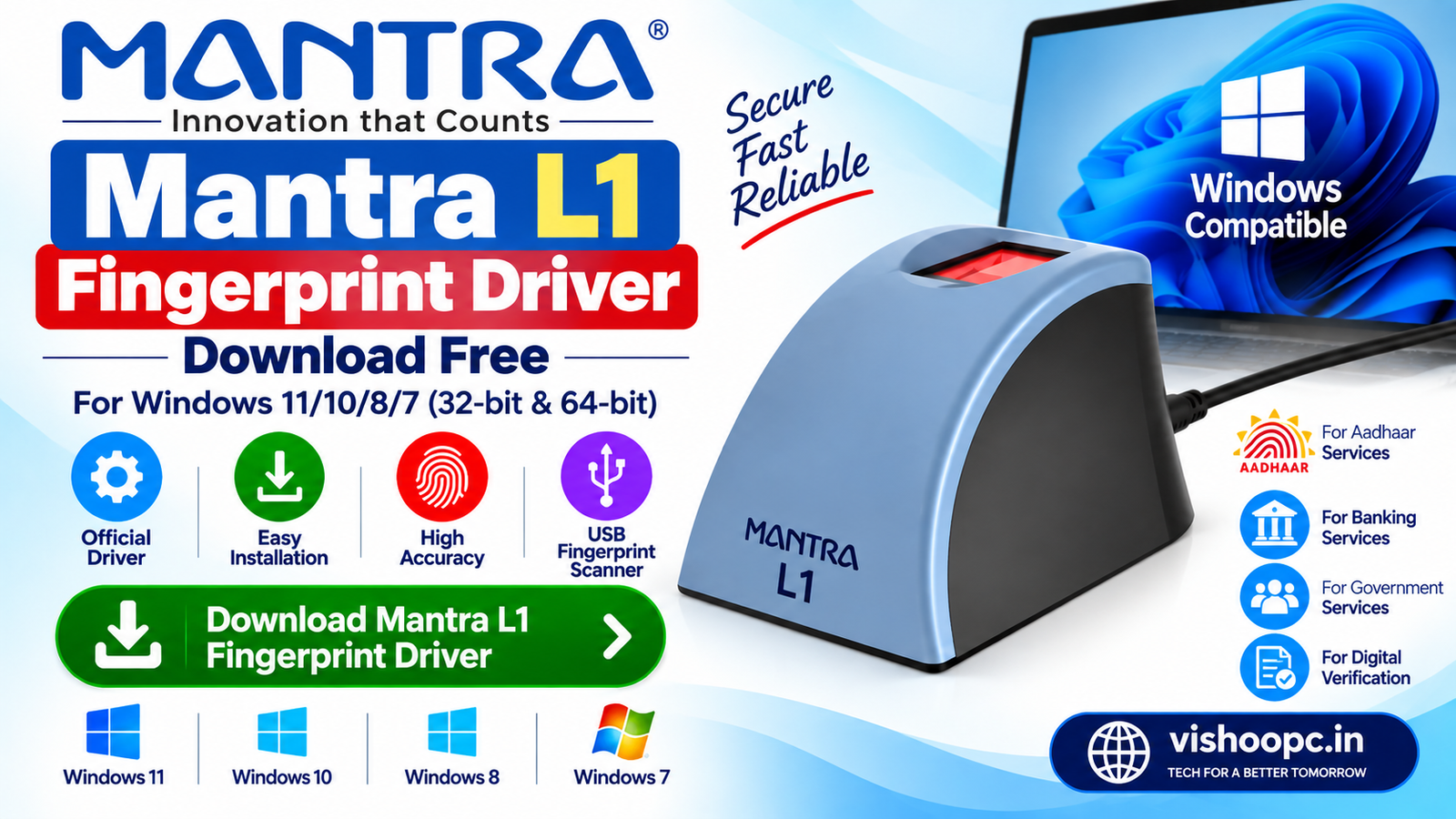
The Mantra L1 110 is a biometric fingerprint device commonly used for Aadhaar authentication, eKYC, banking, government services, and other biometric verification applications. To use the device properly on a computer, the required Mantra L1 110 driver and RD Service need to be installed and configured correctly.
In this guide, you will learn how to download and install the Mantra L1 110 driver, set up RD Service, check whether the device is working, and fix common connection problems.
Mantra L1 110 Driver Download
Before using the Mantra L1 110 fingerprint scanner, make sure that the appropriate driver and RD Service are installed on your Windows computer.
The driver allows Windows to communicate with the biometric device, while the RD Service enables supported applications and portals to access the fingerprint scanner.
Mantra L1 110 Requirements
Before installation, check the following:
- Mantra L1 110 fingerprint device
- Windows computer
- Working USB port
- Stable internet connection
- Compatible Mantra driver
- Mantra RD Service
- Administrator access for installation
How to Install Mantra L1 110 Driver
Follow these steps to install the device driver:
Step 1: Disconnect the Device
If the Mantra L1 110 is already connected to your computer, disconnect it before starting the driver installation.
Step 2: Install the Driver
Download the compatible Mantra L1 110 driver package and run the setup file.
Follow the instructions displayed by the installation wizard and allow the installer to make changes to your computer when Windows asks for permission.
Step 3: Complete Installation
Wait until the installation process is finished. Once the driver has been installed successfully, restart your computer if the installer recommends it.
Step 4: Connect Mantra L1 110
Now connect the fingerprint device to a working USB port.
Windows should detect the device automatically if the driver has been installed correctly.
How to Install Mantra L1 110 RD Service
The driver alone may not be enough for Aadhaar-enabled or other biometric applications. You may also need the appropriate Mantra RD Service.
To install it:
- Download the compatible RD Service package.
- Open the setup file.
- Follow the on-screen installation instructions.
- Complete the installation.
- Restart the computer if required.
- Connect the Mantra L1 110 device.
- Open the RD Service application and check its status.
The exact RD Service version should be obtained from the official Mantra support/download source or the service provider you are using.
How to Check Whether Mantra L1 110 Is Working
After installation, you can check the device using Windows Device Manager.
- Press Windows + X.
- Select Device Manager.
- Look under the relevant biometric, USB, or device category.
- Check whether the Mantra device is detected without a warning symbol.
- If a yellow warning icon appears, the driver may not be installed correctly.
You can also check whether the Mantra RD Service is running from the Windows system tray or installed applications.
Mantra L1 110 Not Detected – How to Fix
If your fingerprint scanner is not detected, try these solutions:
1. Reconnect the USB Device
Remove the device and connect it to another USB port.
2. Restart Your Computer
A restart can resolve temporary driver or service issues.
3. Reinstall the Driver
Uninstall the existing driver if necessary and install the correct compatible driver again.
4. Check RD Service
Make sure the required Mantra RD Service is installed and running.
5. Check Windows Device Manager
If the device appears with a warning symbol, Windows may have a driver problem.
6. Avoid Using an Unpowered USB Hub
Connect the Mantra L1 110 directly to the computer whenever possible.
Mantra L1 110 Fingerprint Not Working
If the device is detected but fingerprint capture is not working, check the following:
- Make sure the RD Service is running.
- Clean the fingerprint sensor gently.
- Try another USB port.
- Restart the RD Service.
- Restart Windows.
- Check whether the website or application supports your device and RD Service.
- Make sure the required driver and service versions are compatible with your Windows system.
Is Mantra L1 110 Compatible With Windows?
Compatibility can depend on the driver, RD Service version, Windows version, and the application or portal being used.
Before installing software, always check the current compatibility information provided by Mantra or the service/application provider.
Frequently Asked Questions
What is Mantra L1 110?
Mantra L1 110 is a biometric fingerprint scanner used for fingerprint-based authentication and verification.
Do I need a driver for Mantra L1 110?
Yes. A compatible device driver is generally required so that Windows can communicate with the fingerprint scanner.
What is Mantra RD Service?
RD Service is a software service that allows supported applications to communicate with registered biometric devices for authentication workflows.
Why is my Mantra L1 110 not detected?
The problem can be caused by an incorrect or missing driver, USB connection problems, an inactive RD Service, or compatibility issues.
How do I fix Mantra L1 110 driver errors?
Try reinstalling the compatible driver, reconnecting the device, restarting Windows, checking Device Manager, and verifying that the required RD Service is running.
Conclusion
The Mantra L1 110 driver and RD Service are important for using the fingerprint device with compatible biometric applications. Install the correct software, connect the device directly to your computer, and verify the device through Windows Device Manager and the RD Service.
For security and compatibility, download device software only from a trusted official source or your authorized service provider and avoid modified or unknown driver packages.